How to Send Large Files Securely (and What “Encrypted” Really Means)
Most file-sharing services can read what you send. Learn what "encrypted" really means, how a link can carry its own key, and how to send large files privately.
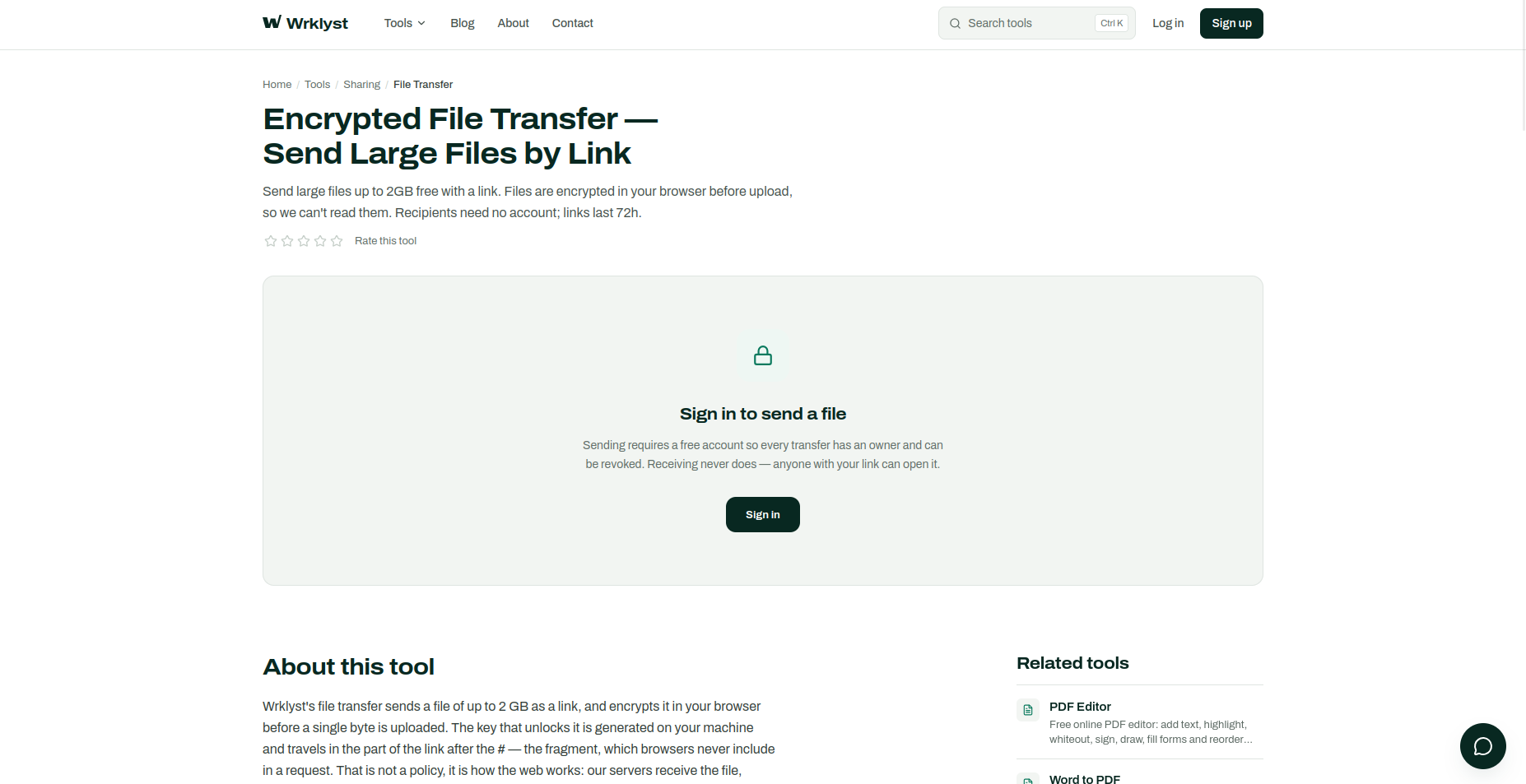
A file that is too big for email usually ends up on a file-sharing service, and almost every one of them says your file is "encrypted". That word is doing a lot of work. It can mean the file is protected on the wire and nowhere else, protected on the provider's disks with a key the provider holds, or protected end to end so that nobody but you and your recipient can ever read it. Only the last one means the service itself cannot open your file. This guide explains the difference, how an ordinary web link can carry its own decryption key, the features that quietly reveal a service can read what you send, and a practical routine for sending large files without leaving a readable copy behind.
Why email gives up on large files
Most mail providers cap a message at 20–25 MB, and many company mail servers stop at 10 MB. The real cap is lower than it looks: email is a text protocol, so attachments travel Base64-encoded, which makes them about a third bigger. A 20 MB video becomes roughly 27 MB on the way out, and the server's limit applies to that.
Size is only half the problem. An attachment that does get through is stored in your sent folder, the recipient's inbox and both providers' backups, readable by both providers, for as long as anyone keeps the email. For a contract, a payroll export or a set of medical scans, that is a lot of copies of a file that only needed to make one trip.
The three things "encrypted" can mean
Encryption in transit
This is HTTPS, the padlock in the address bar. The file is encrypted between your browser and the service's servers, so nobody on the same café Wi-Fi or anywhere along the route can read it. Once it arrives, the service decrypts it. Practically every website does this now. It is the minimum, not a feature.
Encryption at rest
The service encrypts the file before writing it to its disks, using keys it manages itself. This protects against someone walking out of a data centre with a hard drive. It does not protect against the service, its staff, a legal demand served on it, or an attacker who gets into the application rather than the disks, because all of them can use the service's keys.
End-to-end encryption
The file is encrypted on your device, with a key generated on your device, before it is uploaded. The service only ever stores ciphertext and never receives the key. It cannot read the file, and neither can anyone who breaches it or compels it to hand data over.
| Type | Who holds the key | Protects against | Does not protect against |
|---|---|---|---|
| In transit (HTTPS) | The service, which decrypts on arrival | Eavesdroppers on the network | The service and anyone with access to it |
| At rest | The service | Stolen or discarded disks | The service, its staff, legal requests, application breaches |
| End to end | Only the sender and recipient | All of the above | Whoever holds the key, and the recipient's own device |
Most mainstream file-sharing services combine the first two, which is perfectly reasonable for everyday sharing. End-to-end encryption is less common, and where it exists it is often limited to paid business plans. All three can honestly be described as "encrypted". Only one means the provider cannot read your file.
How a link can carry its own key
End-to-end encryption has a practical problem: the recipient needs the key, and the key must not pass through the service. Messaging apps solve it with accounts and key exchange. A file link can solve it with a small detail of how URLs work.
Take a link like https://wrklyst.com/t/8kq2m…#Xf3v9…. Everything after the # is the fragment. Browsers keep the fragment to themselves: it is not sent to the server when the page is requested, and it is left out of the Referer header when the page links elsewhere. The server sees a request for /t/8kq2m… and nothing more.
That makes the fragment a place to carry a key. The sender's browser generates a random key, encrypts the file, uploads only the encrypted result and puts the key after the #. When the recipient opens the link, their browser reads the fragment, downloads the encrypted file and decrypts it locally. The key travels from one browser to the other inside the link, and the server in the middle never sees it.
Three consequences follow, and they are worth understanding before you rely on it:
- The link is the key. Anyone who has the complete link can open the file. Treat it like a password.
- A lost link is a lost file. The service has no copy of the key, so it cannot recover anything for you.
- A truncated link is a dead link. Some chat apps and email clients cut a URL off at the
#. Without the fragment, nobody can decrypt the file.
Six signs a service can read your files
You rarely need to read a privacy policy to work out which kind of encryption a service uses. Its features tell you. Each of the following requires the service to see the contents of your file, which end-to-end encryption rules out:
- It shows previews or thumbnails. Rendering a thumbnail of a photo or the first page of a PDF means opening the file on the server.
- It scans uploads for viruses. A malware scanner has to read the bytes it scans.
- It can search inside your files. Finding a word in a document requires the document's text.
- Its emails mention your file names. If the service emails your recipient "Q3-salary-review.xlsx has been shared with you", it holds the name in readable form.
- Support can restore access you lost. If a forgotten link or password can be fixed by the service, the service has a way in that does not depend on your key.
- It converts or edits files in the cloud. Streaming a video at a lower resolution or opening a document in an online editor means processing the readable file.
None of these features is bad. Previews are convenient and virus scanning is a genuine protection. The point is that they cannot coexist with end-to-end encryption, so a service offering them is a service that can read your files. Choose that trade-off deliberately rather than by accident.
What happens inside Wrklyst's File Transfer
Wrklyst's File Transfer tool is built on the fragment approach. Here are the details, stated plainly so you can check them against everything above:
- AES-256-GCM, in your browser. Your browser generates a fresh 256-bit key with its built-in Web Crypto API, encrypts the file and uploads only the ciphertext. The key goes into the link after the
#and is never sent to Wrklyst. - Chunked encryption. The file is encrypted in 4 MiB pieces, each with its own random 96-bit nonce and a 16-byte authentication tag. Chunking keeps memory use manageable on large files and lets you watch real progress instead of a frozen tab.
- Almost no overhead. Encryption adds 28 bytes per chunk, about 14 KB on a 2 GB file. Compare that with the third that Base64 adds to every email attachment.
- Encrypted file names. The name is encrypted with the same key, because a name like "redundancy-list-final.xlsx" gives away most of what you were trying to protect.
- Built-in tamper detection. GCM authenticates every chunk. If a single byte is altered or the download is cut short, decryption fails with an error instead of producing a quietly corrupted file. You do not need to send a separate SHA-256 checksum to prove the file arrived intact.
- Automatic deletion. Links expire after 72 hours and a scheduled job deletes the encrypted file from storage. You can revoke a transfer before then, which deletes it immediately.
What the service can see: that a transfer exists, how large it is, when it was created and when it expires, and how many times the link has been opened. It needs that much to enforce size limits and expiry. It cannot see the file's name or its contents.
How to send a large file securely, step by step
- Bundle and slim down first. Put several files into one ZIP so your recipient gets one link that expires as a unit. If the bulk is PDFs or photos, compressing them first can cut the upload time considerably. A single transfer can be up to 2 GB. For anything bigger, most archivers (7-Zip, WinRAR, Keka) can split an archive into parts that you send as separate transfers, within the 5 GB each account can send in any 24 hours.
- Check your upload speed. Home connections often upload far slower than they download, and upload speed decides how long this takes. Run the Speed Test and compare with the table below.
- Sign in and add the file. Sending needs a free account, so every transfer has an owner who can revoke it. If you would rather not attach an email address, a ghost account (username and password only) works too. Open File Transfer and drop your file in. Encryption completes first and the upload starts second. Keep the tab open until both finish.
- Send the link through a channel you trust. Since the link is the key, how you send it is part of the security. An end-to-end encrypted messenger or a direct email to the recipient is fine. A public channel, a shared support ticket or a team chat with fifty members is not.
- Tell the recipient what to expect. They have 72 hours, need no account and decrypt the file in their own browser. For files close to 2 GB, a laptop or desktop handles the decryption more comfortably than an older phone.
- Revoke once they have it. When the recipient confirms the download, revoke the transfer rather than waiting out the 72 hours. The fewer hours a working link exists, the fewer chances it has to leak.
How long will the upload take?
| File size | 10 Mbps upload | 50 Mbps upload | 100 Mbps upload |
|---|---|---|---|
| 500 MB | About 7 minutes | About 80 seconds | About 40 seconds |
| 1 GB | About 13 minutes | Under 3 minutes | About 80 seconds |
| 2 GB | About 27 minutes | About 5 minutes | Under 3 minutes |
These are best cases. Real-world throughput usually lands below what a speed test reports, especially over Wi-Fi, so leave a margin. Encryption itself is fast on any recent device and takes a fraction of the upload time. Our guide to testing your internet speed explains why upload is so often the bottleneck.
What end-to-end encryption does not protect
End-to-end encryption takes the service off the list of people who can read your file. It does not make the file safe from everyone, and it helps to be clear about the gaps:
- Anyone with the full link. If the link is forwarded, pasted into the wrong chat or posted publicly, whoever opens it gets the file. Revoking is the remedy.
- The recipient's copy. Once downloaded, the file is an ordinary unencrypted file on their device. What happens next is up to them.
- Browser history. The full link, fragment included, is saved in the recipient's browser history. On a shared or work computer, open it in a private window or delete it from history afterwards.
- Malware. A service that cannot read files cannot scan them either. Trust the sender, not the service, and treat an unexpected executable or macro-enabled document with suspicion whoever it comes from.
- Metadata. The file's size and the timing of the transfer remain visible to the service, as described above.
- A compromised device. Malware or a malicious browser extension on either computer can read the file before it is encrypted or after it is decrypted. No transfer tool can fix that.
Encrypted link or password-protected ZIP?
A password-protected archive is the traditional way to send something sensitive, and it is still reasonable in some situations. Its weaknesses are specific, though:
- File names usually stay visible. Standard ZIP encryption, including the stronger AES variant, encrypts the contents of each file but not the list of names. Anyone can open the archive and see "Payroll-March.xlsx" and "Disciplinary-notes.docx" without the password. 7-Zip's own .7z format can encrypt names as well, but only if you tick that option.
- Weak encryption is still common. Many tools still default to the legacy ZipCrypto scheme when creating a .zip, and it is vulnerable to well-known attacks.
- A person chooses the password. It tends to be short, often reused, and is frequently sent in the same email as the archive, which defeats the point. If you do use one, make it with the Password Generator and send it through a different channel. Our guide to creating a strong password explains why length matters most.
- It still needs a way to travel. A 1.5 GB encrypted ZIP is still too big for email.
An encrypted link avoids all four: the key is 256 random bits that nobody chose or typed, names are encrypted along with contents, and the file never sits anywhere in readable form. A password-protected archive makes more sense when the file must stay encrypted on the recipient's side too, for example when it will be stored on a shared drive and opened later.
Frequently asked questions
Is a file sent over HTTPS secure?
In transit, yes: nobody on the network can read it. But HTTPS ends at the service's server, which then holds the file in a form it can read. For a file only your recipient should be able to open, you need end-to-end encryption on top.
Can I send the same link to several people?
Yes. Anyone with the link can download the file until it expires or is revoked. If you are sending to people whose access you might want to end separately, create a transfer for each of them, so you can revoke one without cutting off the others.
Can a link's expiry be extended?
No. After 72 hours the link stops working and the file is deleted. If someone needs it later, send a new transfer. Short-lived links are a large part of what keeps a leaked link harmless.
Does the recipient need to install anything?
No. Decryption happens in the browser, on any modern computer or phone. There is no app, no account and no email sign-up for the person receiving the file.
Why do I need an account to send but not to receive?
An account gives every uploaded file an owner. That is what lets you revoke a transfer, and what stops the free service from being used anonymously to host abuse. A ghost account needs only a username and password, so sending does not require handing over an email address.
Can Wrklyst recover a file if I lose the link?
No. The key exists only in the link, so without it the stored file is unreadable to everyone, including us. If your recipient has not downloaded it yet, revoke the old transfer and send a new one.
The short version: "encrypted" on its own tells you very little. Ask who holds the key. If the answer is the service, it can read your file. If the key is generated on your device and travels only inside the link, it cannot. The next time you need to move something big and private, send it as an encrypted link, share the link carefully, and revoke it once it has arrived.
- #File Transfer
- #Encryption
- #Privacy
- #Security
Last updated
October 13, 2026