How to Compress an Image Without Losing Quality (JPG, PNG, WebP)
How to shrink an image file size for free without visible quality loss — which format to pick, step-by-step compression, and common mistakes to avoid.
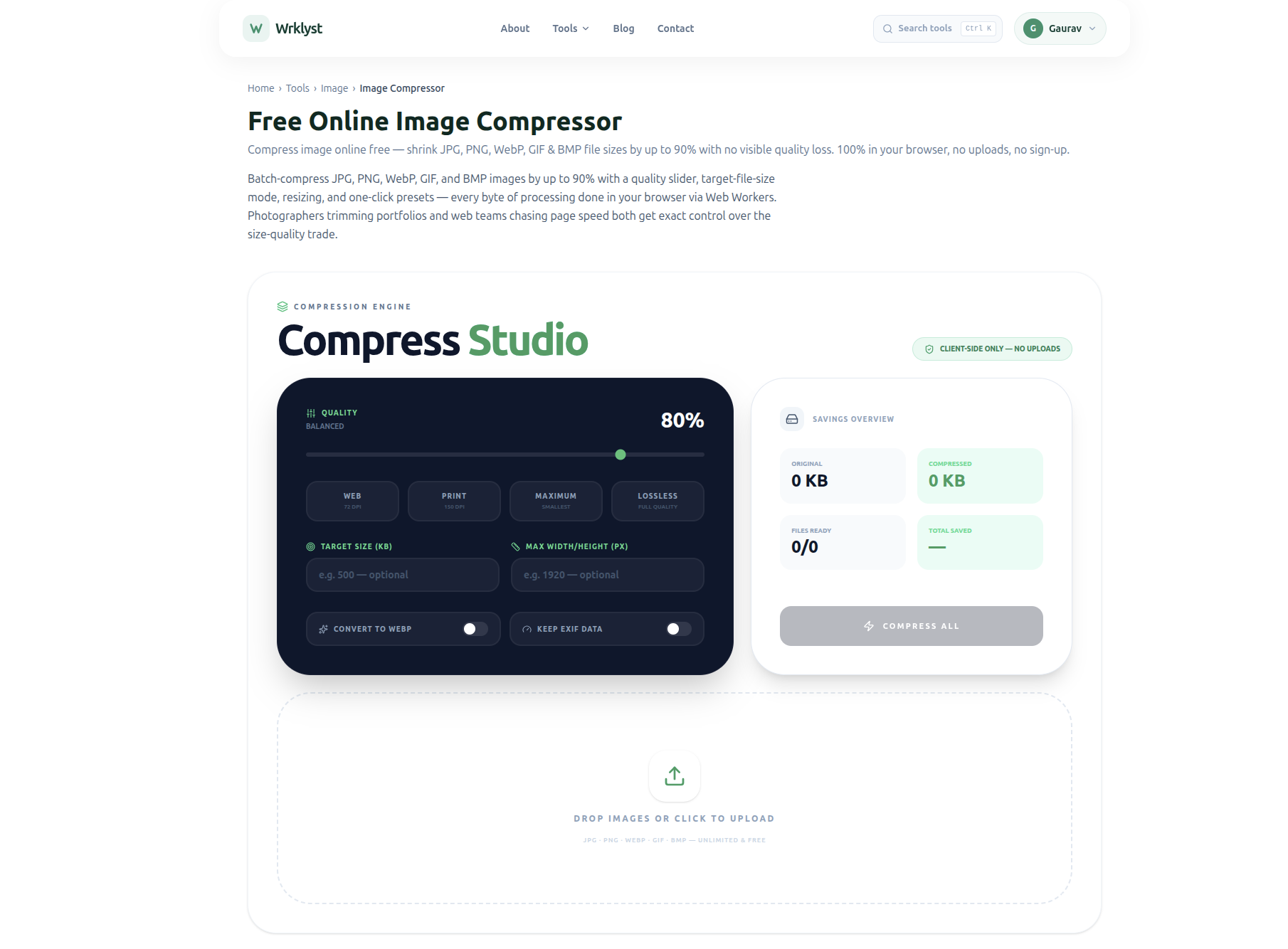
Compressing an image means shrinking its file size while keeping it visually close to the original — the fastest way to do this for free is to upload it to a browser-based image compressor, which reduces file size using smart algorithms without visibly hurting quality, and download the result in seconds with no software or signup required.
That's the short answer. Below is how it actually works, which format to pick, and how to avoid the two mistakes that make compressed images look bad.
Why does image file size matter?
A large image slows down everything it touches:
- Websites load slower, which hurts both user experience and Google's Core Web Vitals score (page speed is a direct ranking factor).
- Emails can bounce or get stuck if attachments are too large.
- Storage fills up faster — a folder of unedited phone photos can easily run into gigabytes.
- Uploads to marketplaces, portfolios, or CMSs often have strict file size limits.
Compression fixes all of this without requiring you to resize the image itself (shrinking the physical dimensions is a separate, more aggressive step).
How does image compression actually work?
There are two kinds, and the difference matters:
Lossy compression removes some image data permanently to shrink the file — used by JPG and WebP. Done well, the loss is invisible to the eye even though the file might be 60–80% smaller.
Lossless compression repackages the existing data more efficiently without discarding anything — used by PNG. Files shrink less dramatically, but nothing is lost, which matters for images with sharp edges, text, or transparency.
A good compressor lets you choose the balance, or picks a sensible default automatically so you don't have to understand codecs to get a clean result.
Which image format should I use?
| Format | Best for | Compression | Transparency |
|---|---|---|---|
| JPG | Photos, complex images | Lossy, small files | No |
| PNG | Logos, screenshots, graphics with text | Lossless, larger files | Yes |
| WebP | Either use case, modern websites | Lossy or lossless, smallest overall | Yes |
If you're not sure which to pick, a deeper comparison is worth reading — see JPG vs PNG vs WebP: Which Image Format Should You Actually Use?
How do I compress an image step by step?
- Pick the right format first (see above) — compressing a PNG screenshot as a JPG can actually make it look worse and sometimes larger.
- Upload the image to a browser-based compressor.
- Choose a quality level, if the tool offers one — 80–85% quality is usually visually indistinguishable from the original at a fraction of the size.
- Compare before and after. Zoom into fine detail (text, edges, gradients) to check for visible artifacts.
- Download the compressed file and replace the original where it's used.
What's the difference between compressing and resizing an image?
Compression reduces file size while keeping the same pixel dimensions. Resizing shrinks the actual width and height (e.g., from 4000×3000 to 1200×900), which also reduces file size but changes how large the image displays. For web use, doing both — resizing to the dimensions you'll actually display, then compressing — gives the smallest usable file.
Does compressing an image reduce quality?
At moderate settings (roughly 75–90% quality for JPG/WebP), no visible quality loss should be apparent to most viewers. Quality loss becomes noticeable only at aggressive compression levels, or when an already-compressed image gets compressed again repeatedly (each pass compounds the loss).
Is it safe to compress images online?
It depends on how the tool processes your file. Some upload your image to a server, compress it there, and send it back — which means your file (and whatever it contains, including any embedded metadata like location data) briefly leaves your device. Tools that compress entirely in your browser using WebAssembly never upload the file anywhere, which is worth checking for anything sensitive.
Common mistakes that make compressed images look bad
- Compressing a PNG as a JPG when it has transparency or sharp text — JPG doesn't support transparency and handles text edges poorly.
- Repeated compression. Re-saving an already-compressed JPG each time you edit it stacks quality loss. Always compress from the original when possible.
- Over-compressing just to hit an arbitrary small file size, rather than picking the quality level that still looks right.
The takeaway
Image compression is a five-second task, not a technical one: match the format to the image type, upload it to a browser-based compressor, and check the result before you use it. Done right, you can cut file size by half or more with no visible difference — which matters whether you're speeding up a website, fitting under an upload limit, or just clearing out storage. If you're also dealing with a PDF instead of an image, the same logic applies — see How to Compress a PDF Without Losing Quality.
- #images
- #guides
- #compression
Last updated
September 4, 2026